IzyDisplay Developer Guide
Version: 2.0.0 Device Model: IZYDISPLAY Display: 480x272 RGB LCD with Capacitive Touch
Table of Contents
- Overview
- First-Time Setup
- Device Settings
- API Reference
- Widget Types
- Styling Guide
- Event System
- Examples
Overview
IzyDisplay is a WiFi-enabled smart display that receives UI templates via HTTP and renders them. It features:
- 480x272 RGB LCD with capacitive touch
- WiFi connectivity (DHCP or Static IP)
- WebServer on port 80 with
/uiendpoint - Access token authentication
- Real-time UI updates via JSON templates
- Interactive widgets with event callbacks (onClick, onChange)
- QR code display support
- Template variables for dynamic content
First-Time Setup
Step 1: Power On the Device
On first boot, the device enters Setup Mode automatically (no WiFi configured).
Step 2: Connect to Setup WiFi
- Look for WiFi network:
IZYDISPLAY_<device_id>- Example:
IZYDISPLAY_E89F6D123456
- Example:
- Connect to it (no password required)
- Your phone/computer will show a captive portal
Step 3: Configure via Web Portal
The setup page will open automatically at http://192.168.4.1
Configuration Options:
| Field | Description | Required |
|---|---|---|
| WiFi Network | SSID of your WiFi network (can scan) | Yes |
| WiFi Password | WiFi password | Yes |
| Network Mode | DHCP (automatic) or Static IP | Yes |
| IP Address | Static IP (only if Static mode selected) | If Static |
| Netmask | Network mask (default: 255.255.255.0) | If Static |
| Gateway | Gateway IP (default: router IP) | If Static |
| Display Name | Friendly name for this display | No |
| Server URL | Optional server URL (for reference only) | No |
| Enable Secure Communication | Checkbox to enable access token authentication | No |
| Access Token | Security token (only if secure communication enabled) | If Enabled |
Setup Portal Screenshots:
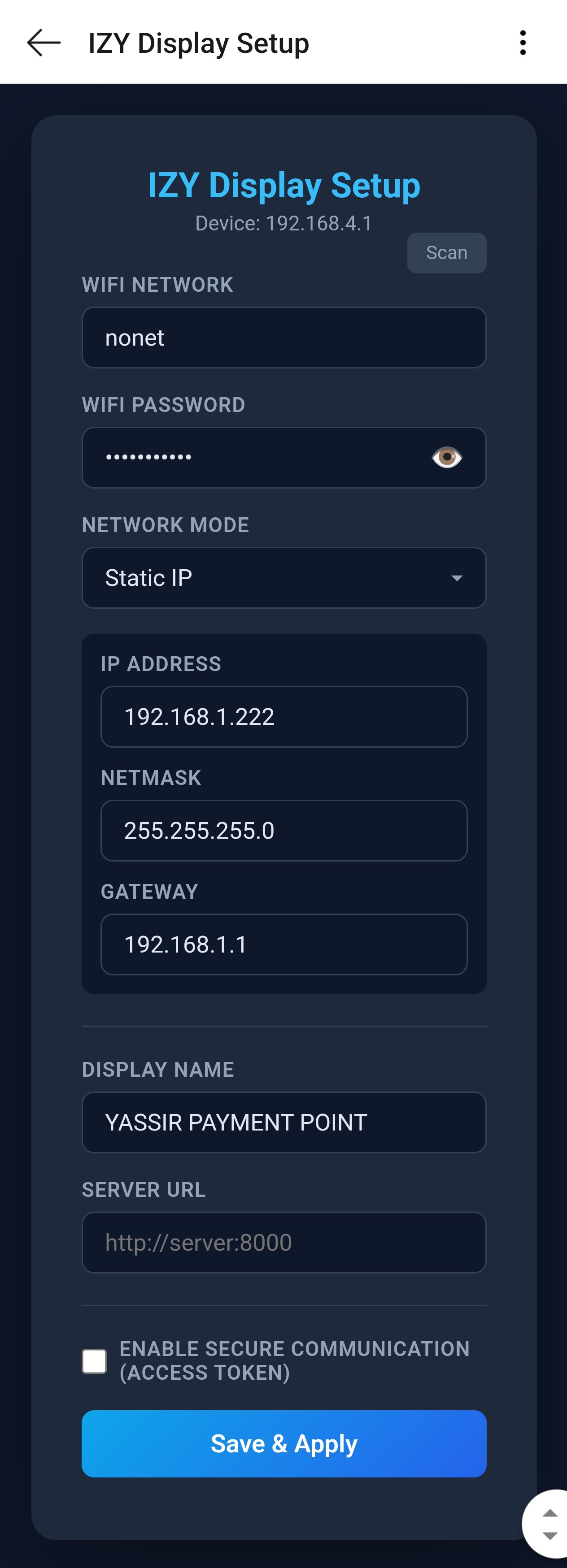 Complete setup form with all configuration options
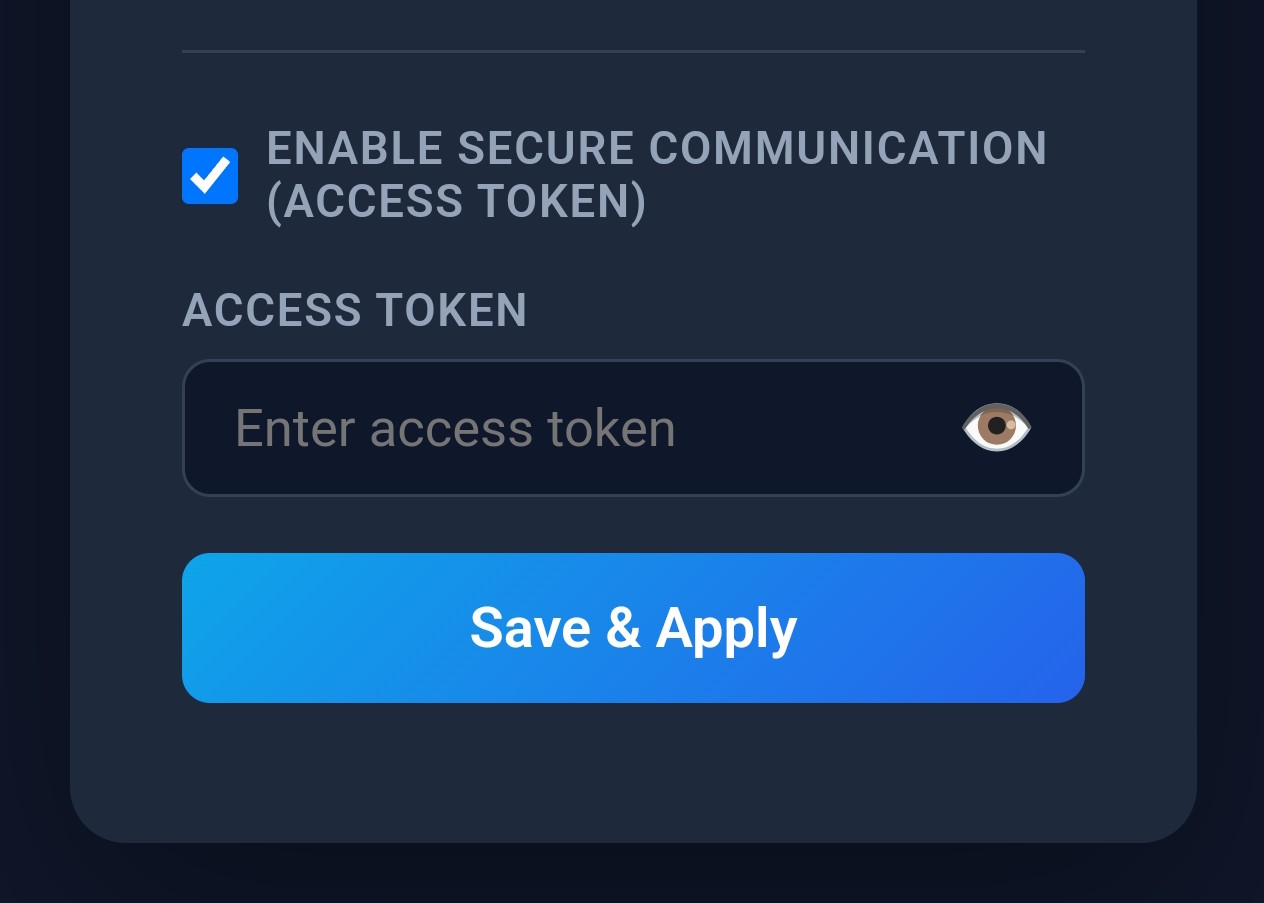 Optional access token feature with checkbox to enable secure communication
Step 4: Save & Connect
- Click "Save & Apply"
- Device will reboot and connect to your WiFi
- Check your router for the device's IP address
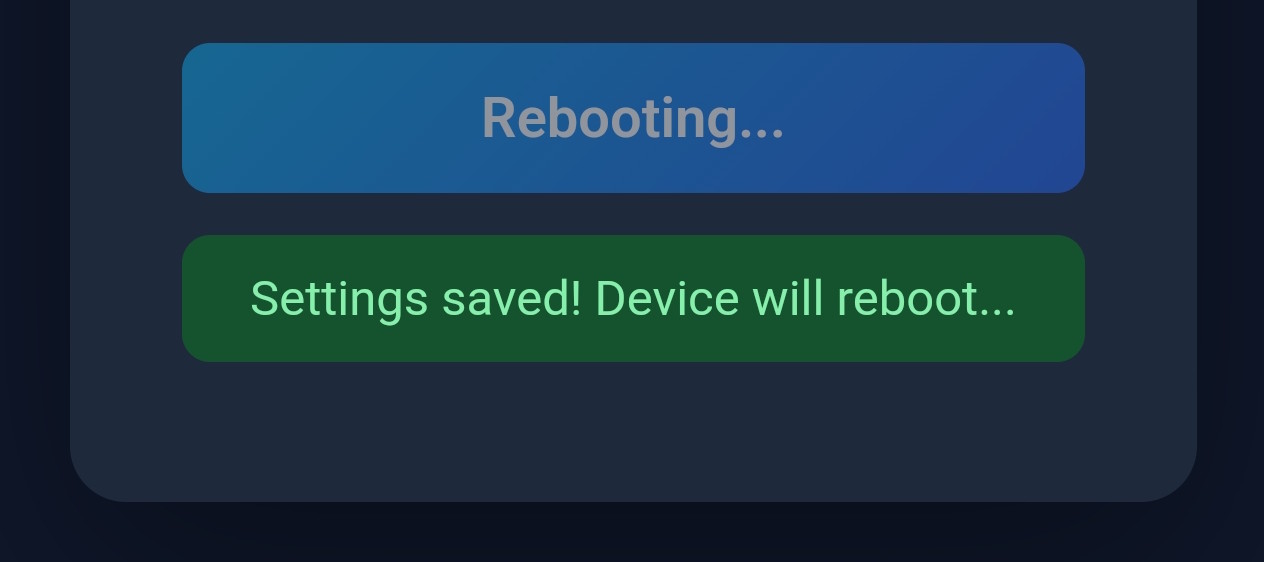 Save confirmation with reboot message
Finding Device IP:
- If DHCP: Check router's DHCP client list
- If Static: Use the IP you configured
- Serial monitor will print:
WiFi IP: 192.168.1.xxx
Device Settings
Accessing Settings Screen
Long-press (3 seconds) on the app name at the top of the display.
Settings Information:
- Device ID (MAC address)
- Firmware Version
- WiFi SSID
- IP Address
- Gateway
- App Name
Available Actions:
- Demo button: Load demo screen
- Reset button: Factory reset (clears all config)
- Exit button: Return to main screen
API Reference
Base URL
http://<device_ip>Replace <device_ip> with your device's IP address (e.g., 192.168.1.18).
Endpoints
1. Root Endpoint - Device Info
GET /Response:
<h1>IzyDisplay Smart Screen</h1>
<p>Device ID: E89F6D123456</p>
<p>Version: 2.0.0</p>
<p>Status: Online</p>
2. UI Template Endpoint
POST /ui
Content-Type: application/json
X-Access-Token: <your_token>
Request Body:
{
  "template": {
    "template_id": "optional_id",
    "widgets": [ /* widget array */ ]
  },
  "data": {
    "key": "value"
  }
}
Important Notes:
- Template level: Use
"template_id"(not"id") to identify the template - Widget level: Use
"id"for individual widgets - Data updates: Without a valid
template_id, data-only updates will fail with400 "No active template"
Headers:
Content-Type: application/json(required)X-Access-Token: <token>(optional) - Required only if secure communication is enabled on device. Must match configured token.
Response:
{
  "status": "success",
  "message": "Template loaded"
}
Error Responses:
{
  "status": "error",
  "message": "Invalid access token"
}
{
"status": "error",
"message": "Invalid JSON"
}Widget Types
1. Label
Display text with styling.
{
  "type": "label",
  "id": "title",
  "text": "Hello World",
  "x": 10,
  "y": 10,
  "width": 460,
  "style": {
    "text_color": "#FFFFFF",
    "text_font": "MONTSERRAT_24",
    "text_align": "center"
  }
}
2. Button
Interactive button with click events.
{
  "type": "button",
  "id": "submit_btn",
  "text": "Submit",
  "x": 190,
  "y": 200,
  "width": 100,
  "height": 50,
  "style": {
    "bg_color": "#0EA5E9",
    "text_color": "#FFFFFF",
    "radius": 10
  },
  "onClick": {
    "target_url": "http://192.168.1.100/api/submit",
    "method": "POST",
    "params": {
      "action": "submit"
    }
  }
}
3. QR Code
Display QR codes for URLs, text, etc.
{
  "type": "qrcode",
  "id": "qr1",
  "text": "https://example.com",
  "size": 200,
  "x": 140,
  "y": 36,
  "style": {
    "bg_color": "#FFFFFF",
    "fg_color": "#000000"
  }
}
4. Slider
Adjustable slider with value change events.
{
  "type": "slider",
  "id": "brightness",
  "min": 0,
  "max": 100,
  "value": 50,
  "x": 50,
  "y": 100,
  "width": 380,
  "onChange": {
    "target_url": "http://192.168.1.100/api/brightness",
    "method": "POST",
    "params": {
      "value": "${self}"
    }
  }
}
Note: Slider onChange events trigger only when the user releases the slider (not during dragging) to avoid flooding the network with requests and maintain smooth UI performance.
5. Switch
On/off toggle switch.
{
  "type": "switch",
  "id": "power",
  "checked": true,
  "x": 200,
  "y": 150,
  "onChange": {
    "target_url": "http://192.168.1.100/api/power",
    "method": "POST",
    "params": {
      "state": "${self}"
    }
  }
}
6. Checkbox
Checkbox with label.
{
  "type": "checkbox",
  "id": "agree",
  "text": "I agree to terms",
  "checked": false,
  "x": 50,
  "y": 200
}
7. Image
Display PNG or GIF images from URL or base64.
Supported Formats:
- PNG (recommended)
- GIF (including animations)
- JPEG (detected but not yet supported - convert to PNG)
From URL:
{
  "type": "image",
  "id": "logo",
  "src": "https://example.com/logo.png",
  "x": 200,
  "y": 50,
  "width": 183,
  "height": 156
}
Base64 Image:
{
  "type": "image",
  "id": "logo_b64",
  "src": "data:image/png;base64,iVBORw0KGgoAAAANSUhEUgAA...",
  "align": "center"
}
Note: Maximum image size is 512KB. Images are cached in PSRAM (up to 5 images).
8. Container (Panel)
Container for grouping widgets.
{
  "type": "obj",
  "id": "panel1",
  "x": 10,
  "y": 10,
  "width": 460,
  "height": 250,
  "scrollable": true,
  "scroll_dir": "vertical",
  "style": {
    "bg_color": "#1E293B",
    "radius": 10,
    "pad_all": 10
  },
  "widgets": [
    /* child widgets */
  ]
}
9. Spinner
Loading spinner animation.
{
  "type": "spinner",
  "id": "loader",
  "x": 220,
  "y": 116,
  "width": 40,
  "height": 40
}
10. Toast
Android-style temporary message that auto-dismisses after duration.
{
  "type": "toast",
  "text": "Operation successful!",
  "duration": 3000,
  "position": "bottom"
}
Properties:
text(required): Message to displayduration(optional): Auto-dismiss time in milliseconds (default: 3000)position(optional):"top","center", or"bottom"(default:"bottom")
Note: Toasts float on top of all other widgets and automatically delete themselves after the specified duration.
Styling Guide
Common Style Properties
| Property | Type | Example | Description |
|---|---|---|---|
text_color |
Color | "#FFFFFF" |
Text color |
text_font |
String | "MONTSERRAT_24" |
Font name |
text_align |
String | "center" |
left, center, right |
text_opa |
Integer | 255 |
Text opacity (0-255) |
bg_color |
Color | "#000000" |
Background color |
bg_opa |
Integer | 200 |
Background opacity |
fg_color |
Color | "#FFFFFF" |
Foreground color (QR) |
border_color |
Color | "#0EA5E9" |
Border color |
border_width |
Integer | 2 |
Border width in pixels |
radius |
Integer | 10 |
Corner radius |
pad_all |
Integer | 10 |
Padding (all sides) |
Available Fonts
| Font Name | Size | Use Case |
|---|---|---|
DIGITAL_100 |
100px | Large digital numbers |
CENTURY_38 |
38px | Headings |
LV_FONT_DEJAVU_16_PERSIAN_HEBREW |
16px | RTL languages |
Built-in fonts not listed (MONTSERRAT_14-60 available).
Color Formats
"#FFFFFF"         // Hex RGB
"#FFF"            // Short hex
{"r": 255, "g": 255, "b": 255}  // RGB object
Event System
onClick Event
Triggered when a widget is clicked (button, label, etc.).
{
  "type": "button",
  "id": "action_btn",
  "onClick": {
    "target_url": "http://192.168.1.100/api/action",
    "method": "POST",
    "params": {
      "action": "start",
      "timestamp": "${timestamp}"
    }
  }
}
onChange Event
Triggered when a widget value changes (slider, switch, checkbox).
{
  "type": "slider",
  "id": "volume",
  "onChange": {
    "target_url": "http://192.168.1.100/api/volume",
    "method": "POST",
    "params": {
      "level": "${self}",
      "device_id": "living_room"
    }
  }
}
Parameter Substitution
| Pattern | Description | Example Value |
|---|---|---|
${self} |
Current widget value | "75" (slider) |
${value} |
Alias for ${self} |
"true" (switch) |
${widget_id} |
Value from another widget | "50" |
| Static value | Passed as-is | "hello" |
Example with Multiple Widget Values:
{
  "type": "button",
  "id": "submit",
  "onClick": {
    "target_url": "http://192.168.1.100/api/settings",
    "method": "POST",
    "params": {
      "brightness": "${brightness_slider}",
      "power": "${power_switch}",
      "mode": "manual"
    }
  }
}
Event Request Format
When an event is triggered, the device sends:
Request:
POST http://192.168.1.100/api/action
Content-Type: application/json

{
  "value": "75",
  "widget_id": "brightness_slider",
  "brightness": "75",
  "power": "true",
  "mode": "manual"
}
Examples
Example 1: Simple Welcome Screen
curl -X POST http://192.168.1.18/ui \
  -H "Content-Type: application/json" \
  -H "X-Access-Token: IZYDISPLAY@2026" \
  -d '{
    "template": {
      "template_id": "welcome",
      "widgets": [
        {
          "type": "label",
          "text": "Welcome to IzyDisplay",
          "x": 0,
          "y": 100,
          "width": 480,
          "style": {
            "text_color": "#38BDF8",
            "text_align": "center"
          }
        }
      ]
    }
  }'
Example 2: Interactive Brightness Control
curl -X POST http://192.168.1.18/ui \
  -H "Content-Type: application/json" \
  -H "X-Access-Token: IZYDISPLAY@2026" \
  -d '{
    "template": {
      "widgets": [
        {
          "type": "label",
          "id": "title",
          "text": "Brightness Control",
          "x": 0,
          "y": 20,
          "width": 480,
          "style": {
            "text_align": "center",
            "text_color": "#FFFFFF"
          }
        },
        {
          "type": "slider",
          "id": "brightness",
          "min": 0,
          "max": 100,
          "value": 50,
          "x": 50,
          "y": 120,
          "width": 380,
          "onChange": {
            "target_url": "http://192.168.1.100/api/brightness",
            "method": "POST",
            "params": {
              "level": "${self}"
            }
          }
        },
        {
          "type": "label",
          "id": "value_label",
          "text": "50%",
          "x": 0,
          "y": 160,
          "width": 480,
          "style": {
            "text_align": "center"
          }
        }
      ]
    }
  }'
Example 3: QR Code Display
curl -X POST http://192.168.1.18/ui \
  -H "Content-Type: application/json" \
  -H "X-Access-Token: IZYDISPLAY@2026" \
  -d '{
    "template": {
      "widgets": [
        {
          "type": "qrcode",
          "text": "https://massani3.com",
          "size": 200,
          "x": 140,
          "y": 36
        },
        {
          "type": "label",
          "text": "Scan to visit",
          "x": 0,
          "y": 240,
          "width": 480,
          "style": {
            "text_align": "center",
            "text_color": "#94A3B8"
          }
        }
      ]
    }
  }'
Example 4: Dashboard with Multiple Widgets
curl -X POST http://192.168.1.18/ui \
  -H "Content-Type: application/json" \
  -H "X-Access-Token: IZYDISPLAY@2026" \
  -d '{
    "template": {
      "template_id": "dashboard",
      "widgets": [
        {
          "type": "label",
          "text": "Smart Home Dashboard",
          "x": 0,
          "y": 10,
          "width": 480,
          "style": {
            "text_align": "center",
            "text_color": "#38BDF8"
          }
        },
        {
          "type": "obj",
          "x": 10,
          "y": 50,
          "width": 220,
          "height": 200,
          "style": {
            "bg_color": "#1E293B",
            "radius": 10,
            "pad_all": 15
          },
          "widgets": [
            {
              "type": "label",
              "text": "Living Room",
              "x": 0,
              "y": 0,
              "style": {
                "text_color": "#FFFFFF"
              }
            },
            {
              "type": "switch",
              "id": "living_power",
              "checked": true,
              "x": 10,
              "y": 40,
              "onChange": {
                "target_url": "http://192.168.1.100/api/room/living",
                "method": "POST",
                "params": {
                  "power": "${self}"
                }
              }
            },
            {
              "type": "slider",
              "id": "living_bright",
              "min": 0,
              "max": 100,
              "value": 75,
              "x": 10,
              "y": 100,
              "width": 180,
              "onChange": {
                "target_url": "http://192.168.1.100/api/room/living",
                "method": "POST",
                "params": {
                  "brightness": "${self}"
                }
              }
            }
          ]
        },
        {
          "type": "obj",
          "x": 250,
          "y": 50,
          "width": 220,
          "height": 200,
          "style": {
            "bg_color": "#1E293B",
            "radius": 10,
            "pad_all": 15
          },
          "widgets": [
            {
              "type": "label",
              "text": "Bedroom",
              "x": 0,
              "y": 0,
              "style": {
                "text_color": "#FFFFFF"
              }
            },
            {
              "type": "switch",
              "id": "bedroom_power",
              "checked": false,
              "x": 10,
              "y": 40
            }
          ]
        }
      ]
    }
  }'
Example 5: Template Variables
curl -X POST http://192.168.1.18/ui \
  -H "Content-Type: application/json" \
  -H "X-Access-Token: IZYDISPLAY@2026" \
  -d '{
    "template": {
      "widgets": [
        {
          "type": "label",
          "text": "Temperature: ${temp}°C",
          "x": 50,
          "y": 100
        },
        {
          "type": "label",
          "text": "Humidity: ${humidity}%",
          "x": 50,
          "y": 130
        }
      ]
    },
    "data": {
      "temp": "24.5",
      "humidity": "65"
    }
  }'
Serial Commands
Connect via USB serial (115200 baud) for debugging:
| Command | Description |
|---|---|
HELP |
Show all commands |
GET_INFO |
Device model/version |
PRINTCONFIG |
Show configuration |
WIFI_STATUS |
WiFi connection info |
WIFI_RECONNECT |
Reconnect WiFi |
RESET |
Factory reset |
REBOOT |
Reboot device |
RENDERER_STATUS |
Show active template |
RENDERER_CLEAR |
Clear template |
MSG:text |
Show toast message |
Troubleshooting
Device Not Responding
- Check WiFi connection:
WIFI_STATUSvia serial - Verify IP address in router
- Ping the device:
ping 192.168.1.18 - Check access token matches
Template Not Loading
- Validate JSON syntax
- Check
X-Access-Tokenheader - View serial output for errors
- Try with simple template first
Data Updates Fail with "No active template"
Error: 400 {"error":"No active template"}
Cause: Using "id" instead of "template_id" in template
Solution:
// ❌ WRONG - will fail data updates
{
  "template": {
    "id": "my_template",  // Wrong field name!
    "widgets": [...]
  }
}

// ✅ CORRECT - enables data updates
{
  "template": {
    "template_id": "my_template",  // Correct field name
    "widgets": [...]
  }
}
Then data-only updates will work:
{
  "data": {
    "temp": "25.0",
    "humidity": "60"
  }
}
Events Not Firing
- Ensure target URL is accessible from device
- Check serial monitor for HTTP errors
- Verify WiFi connectivity
- Confirm event URLs are correct
Factory Reset
- Long-press app name (3 seconds)
- Click Reset button
- OR send
RESETvia serial - Device will reboot to setup mode
Security Notes
- Change default access token in setup
- Use strong tokens (16+ characters, mix of letters/numbers/symbols)
- Don't expose device directly to internet
- Keep device on secure local network
Technical Specifications
| Spec | Value |
|---|---|
| Display | 480x272 RGB LCD |
| Touch | Capacitive (5-point) |
| WiFi | 802.11 b/g/n (2.4GHz) |
| Interface | USB-C (CDC serial + power) |
| Power | 5V USB-C |
Happy Building! 🚀